How to use Noor
Everything explained simply, with pictures — the same guides live inside the app under Settings → How to use Noor (in 7 languages).
📍 Prayer times & your location

- Noor needs your location to calculate prayer times.
- Open Settings → Prayer settings → Location.
- Choose 'Use my location', or search for your city by name.
- Times look wrong? Try a different calculation method in Prayer settings — nearby mosques often list which one they use.
🔔 Reminders & the adhan
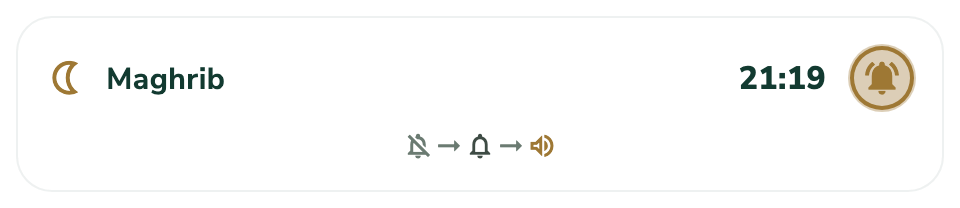
- Go to the Prayers tab.
- Tap the bell next to any prayer to cycle: off → notify → adhan.
- 'Adhan' plays the call to prayer — pick your favourite of the 13 voices in Settings → Prayer settings → Adhan voice.
- Want a heads-up before prayer? Turn on 'Early reminder' in Prayer settings.
🧩 Widgets on your home screen

- Widgets show your next prayer on the home screen without opening Noor.
- iPhone: press and hold the home screen, tap the + button, search 'Noor'.
- Android: press and hold the home screen, choose Widgets, find Noor.
- Try 'Noor — Your Choice': after adding it, press and hold it and tap Edit to choose what it shows.
📖 Reading the Qur'an

- Tap any surah to read; use the search box to find a surah by name ('Yasin', '36') or search inside the verses — Arabic works without accents.
- Scroll freely — Noor remembers exactly where you stopped. Tap 'Continue reading' on the Qur'an tab to jump back.
- Tap the bookmark icon under any verse to save it. The Bookmarks card on the Qur'an tab lists them all — tap one to jump straight there.
- Star a surah with the ☆ icon to pin it to your Favourites at the top. The chart icon (top right) shows your private reading journey.
🕌 Learn to pray
- New to praying, or teaching someone? Open the Prayers tab → Learn to pray.
- Illustrated step-by-step guides for wudu, ghusl and every prayer.
- Switch between male and female illustrations inside any lesson.
✅ Tracking prayers & fasts

- Tap the circles to mark each prayer you've prayed — from the app, the home-screen widget, or the notification button.
- Your streak counts days where all five are done. Tap a day in the week row to fix past days.
- Made the app aware of your cycle in Settings? Days you're excused keep your streak whole automatically — nothing to do.
- Everything stays on your phone. Turn on iCloud sync in Settings if you want your own devices to share it.
🎧 Noor Audio & sleep

- Explore → Noor Audio: Qur'anic playlists for sleep, ruqyah, Fridays and Ramadan.
- Tap the download icon on any track to keep it for offline listening.
- Listening at bedtime? Start the sleep timer in the player — it fades out gently.
📥 Using Noor offline

- Nearly everything in Noor works without internet.
- Download recitation for offline listening: the download icon at the top of the Qur'an tab.
- Or grab everything at once: Settings → App settings → Download for offline.
- Mosque maps offline: Settings → App settings → Offline masjids.
🚗 In the car & on your watch
- Plug your phone into the car — Noor appears in CarPlay / Android Auto with prayer times and the full Qur'an.
- Apple Watch & Wear OS: install the watch app from your phone's watch store; the next prayer shows right on your watch face.
🖼️ Wallpapers, sharing & calendar

- Wallpapers: Explore → Wallpapers — pick a design and tap Share / Save. It's made to fit your screen exactly.
- Share a verse: tap the share icon on any ayah — it sends a beautiful card.
- iMessage stickers: in Messages, tap the + next to the text box → Stickers → Noor.
- Prayer times in your calendar: Prayers tab → calendar icon → 'Add to calendar'.
🌸 For women: cycle-aware worship
- For women: turn on 'Cycle-aware worship' in App Settings. It's off by default and completely private — never synced anywhere.
- On the Prayer tracker, tap 'Period started' when it begins and 'Period ended' when it finishes. That's all.
- Excused days keep your prayer streak whole, Ramadan days are counted as fasts to make up on the Fasting screen, and the Ghusl guide is offered when it's due.
- Noor only applies what all schools agree on. For irregular bleeding, please ask a scholar.
💬 Stickers & iqamah times
- Open Explore → Stickers to see the packs: Arabic calligraphy and English phrases.
- Tap 'Add to WhatsApp' under a pack — WhatsApp opens and asks you to confirm.
- In iMessage, the Noor pack is already in the sticker drawer: in a chat, tap + then choose Noor.
- Prayer times beside the adhan: set your masjid's iqamah minutes in Prayer settings → 'Iqamah — my masjid'.
🛡️ Backup & moving phones
- Your data lives on your phone — Noor has no accounts and no servers.
- To move to a new phone: Settings → App settings → Your data → Export backup, then Import on the new phone.
- On iPhone you can turn on iCloud sync — it only ever uses your own iCloud.
💬 Something wrong? Tell us

- Something looks wrong or confusing? Settings → About → 'Spotted something off?'.
- It emails the developer directly — Noor is built by one person, and fixes ship quickly.
Still stuck? Email [email protected] — Noor is built by one person, and help comes fast.